How to Control Your PC Using an AI Assistant
A Windows AI assistant can make supported PC tasks easier to request, but reliable control depends on clear commands, limited permissions and review steps for actions that affect files, accounts or other people.
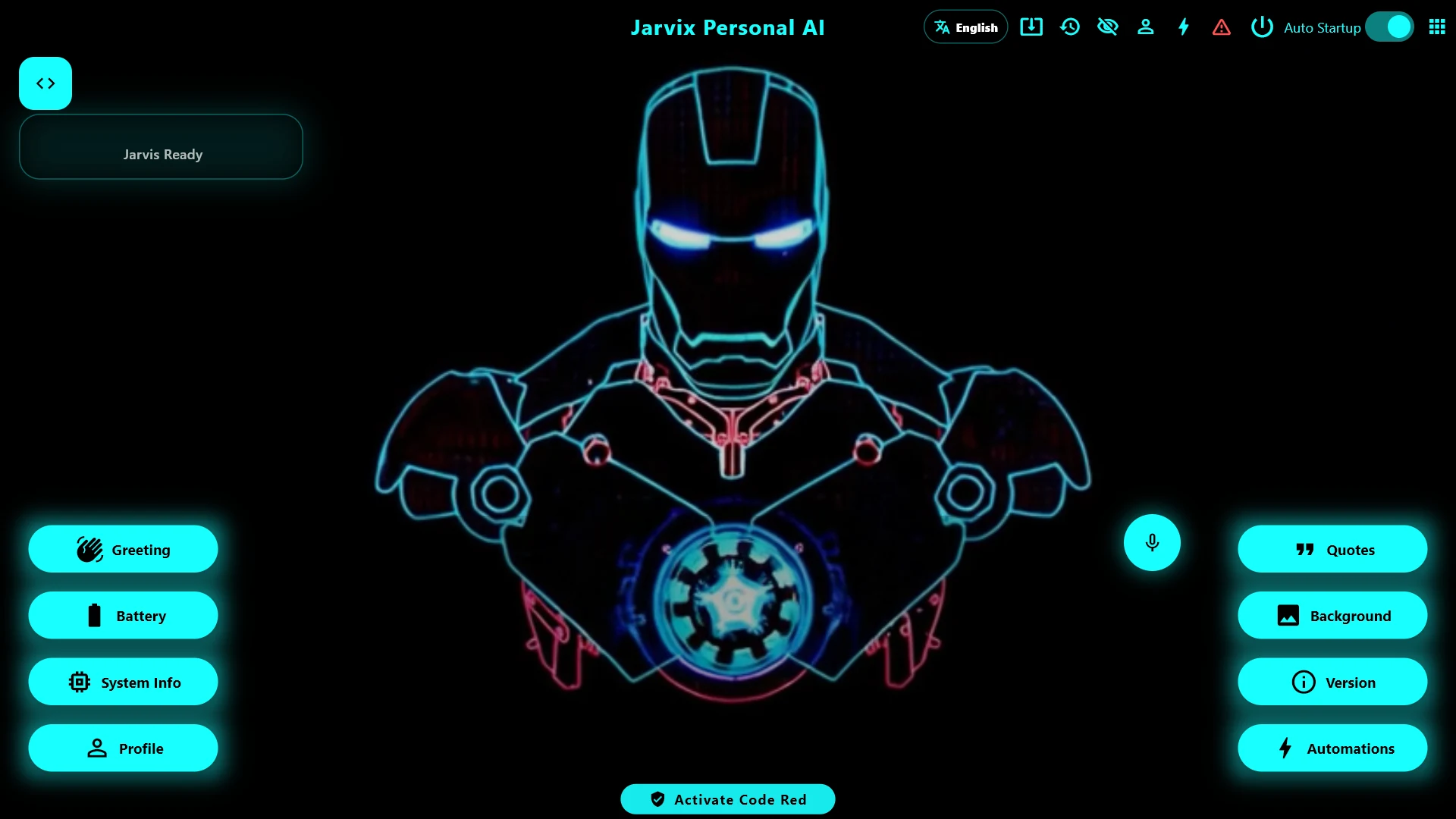
What controlling a PC with an AI assistant means
An assistant translates a spoken or typed request into one of the actions it supports. Some commands are deterministic, such as opening an app or creating a reminder. Optional AI can help interpret more natural phrasing, but it does not make every Windows action available or error-free.
Start with a clear, reversible task
- Choose a task such as opening an app, searching the web or creating a reminder.
- State the action and the target clearly.
- Check the interpreted details when the assistant asks a follow-up question.
- Confirm that the result matches the request before creating a longer workflow.
Use voice or typed commands
Jarvix Personal AI accepts supported natural voice and typed commands. Core commands can work without the optional Jarvix Brain model. Voice control requires a microphone, while typed commands provide an alternative in quiet environments or when speech recognition is uncertain.
- Open supported Windows applications
- Change supported system settings
- Work with selected files and folders
- Create tasks, reminders and calendar events
- Run saved multi-step workflows
- Search the web or supported local sources
Choose a language and optional offline model
Jarvix supports English, Hindi, Russian, Ukrainian, Portuguese, Turkish, Italian, German, Japanese, Greek and French. English is built in, while optional downloadable components can translate supported commands locally. Model downloads require storage, and the exact response still depends on command coverage.
Configure voices, camera tools and storage views
Jarvix v1.1.8 adds a Voices screen for choosing available assistant voices, seasonal themes and a Storage Analyzer for reviewing disk usage, available space and large files. Optional Face Unlock and Camera Control require a compatible camera and Windows camera permission. Test camera gestures in a controlled setting before relying on pointer movement or screen actions.
Connect apps only when the workflow needs them
Connected services add permissions and another provider to the workflow. Jarvix Apps Connect supports read-only Gmail subjects and user-requested inbox or draft previews. Email preparation and sending use a separate reviewed browser flow. WhatsApp Desktop workflows can use saved contacts for supported chats, messages and calls.
Understand the optional local AI model
Jarvix Brain is optional. It runs through a model downloaded to the Windows device and is intended for conversational assistance and command interpretation. Core supported commands do not require a third-party AI API key. Local models still require sufficient memory, storage and processing capability.
Use Android companion features deliberately
The Android companion supports selected phone workflows from the PC and authenticated file transfer up to 2 GB. Pair only a phone you control, review transfer requests and confirm the destination before accepting a file.
Build a reusable automation gradually
- Test each action separately.
- Arrange the actions in the required order.
- Add review points before messages, calls, transfers or file changes.
- Run the workflow with non-sensitive test data.
- Save it only after every step produces the expected result.
- Keep diagnostics and a manual fallback available when Windows or another service changes.
Important limitations
| Limitation | Practical response |
|---|---|
| Speech can be misunderstood | Use typed input or restate the command. |
| AI interpretation can be incorrect | Review important details and outputs. |
| Connected services can change | Use diagnostics and check the provider sign-in state. |
| Permissions may block an action | Enable only the permission required for that feature. |
| Automation can affect other apps | Test reversible actions and keep a manual fallback. |
Final recommendations
Begin with built-in commands and one useful task. Add a language model, Jarvix Brain, connected service or Android workflow only when it improves that task. Keep permissions narrow, review sensitive actions and treat AI output as a suggestion that can require correction.
Explore the supported product workflow
Review verified features, real interface screenshots and official Store links.

Jarvix Personal AI
Control Windows with voice, optional local AI, connected apps, camera tools and Android workflows.

Best AI Apps for Windows 11: A Practical Guide
The best Windows AI app depends on the job, the data it can access and whether processing happens locally or through an online provider. This guide compares useful categories instead of claiming one tool is best for everyone.
Read article
How to Find Files Faster on Windows 11
When a file name is forgotten, the fastest solution is usually to narrow the location, use the detail you still remember and check whether Windows has indexed the folder. These methods work without installing another app.
Read article