How to Connect an Android Phone to Jarvix on Windows
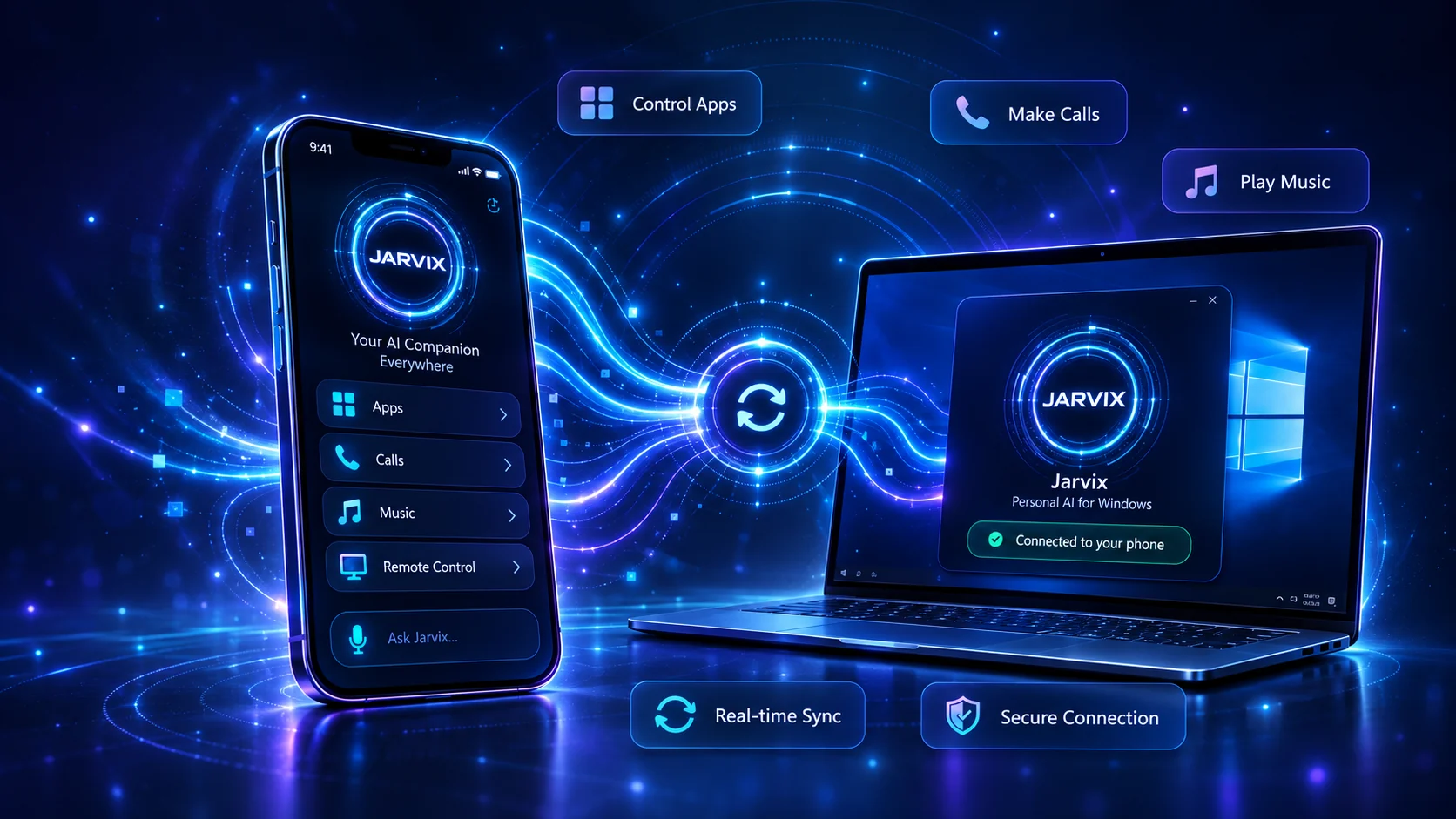
Jarvix Mobile is an Android companion for Jarvix Personal AI on Windows. Pair only devices you control and grant permissions only for the phone actions you plan to use.
Check compatibility and trust
The companion supports selected actions such as opening Android apps, starting calls and controlling music from Jarvix on the paired Windows PC. It is Android-only and requires the Windows app.
Before you begin
- Use an Android phone or tablet you control
- Install Jarvix Personal AI on a compatible Windows PC
- Connect both devices to an available network
- Review Android installation and permission prompts
Install and pair Jarvix Mobile
- Download the Jarvix Mobile APK from the official VCR Technology page.
- Approve installation through the browser or file manager used for the download.
- Open Jarvix Personal AI on Windows and Jarvix Mobile on Android.
- Follow the in-app pairing steps.
- Test one supported action such as opening an app.
Understand the key features
| Feature | How to use it |
|---|---|
| Open mobile apps | Send a supported launch action from Jarvix. |
| Start phone calls | Use a contact-based command after granting the required permission. |
| Music control | Send supported playback actions to the paired phone. |
| Connection status | Confirm that the companion remains available. |
Use a connected phone command
- Confirm the correct phone is paired.
- Speak or type a clear action in Jarvix.
- Review the contact or app name.
- Allow any Android confirmation that matches the request.
- Check the phone when the action does not complete.
Practical tips
- Enable installation permission only for the current installation
- Revoke Android permissions you do not use
- Include phone model and Android version in support requests
- Disconnect devices before transferring ownership
Important limitations
Availability depends on Android version, device manufacturer, installed apps, network access and granted permissions. Jarvix Mobile does not support iPhone or iPad and does not replace the Windows app.
Final recommendations
Test one permission-backed feature at a time, keep the companion updated and review pairing whenever the phone, network or Windows installation changes.
Explore the supported product workflow
Review verified features, real interface screenshots and official Store links.

Jarvix Personal AI
Control Windows with voice, optional local AI, connected apps, camera tools and Android workflows.
How to Control Your PC Using an AI Assistant
A Windows AI assistant can make supported PC tasks easier to request, but reliable control depends on clear commands, limited permissions and review steps for actions that affect files, accounts or other people.
Read article