How to Block Distractions While Studying on a PC
Blocking everything is rarely a useful study plan. A stronger approach is to prepare the resources you need, reduce predictable interruptions and decide how the session can end before the timer starts.
Define one study outcome
Use a goal that can be checked at the end, such as finishing a chapter and writing five summary notes. A precise goal makes the timer easier to choose and the report easier to interpret.
Prepare approved resources first
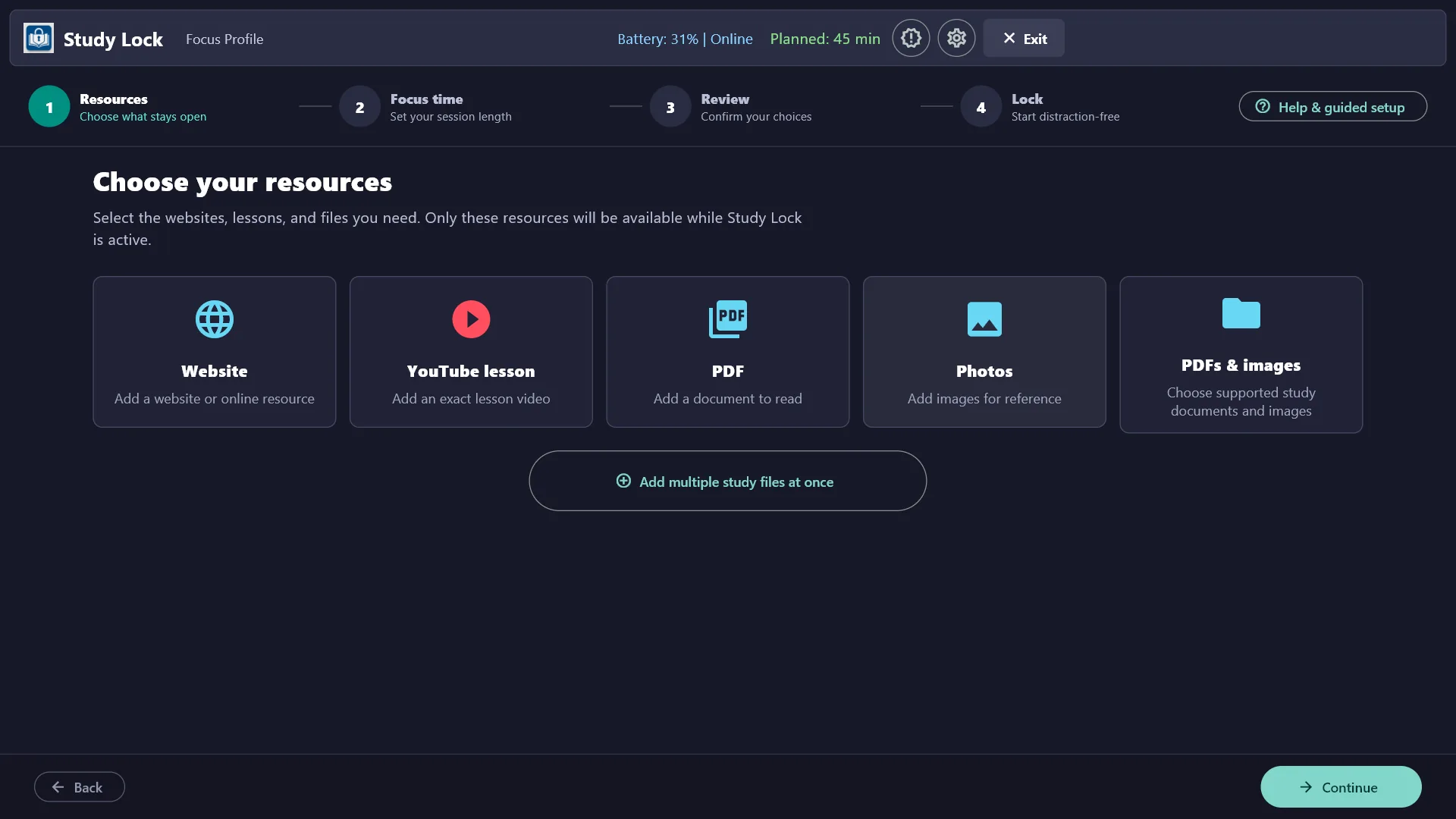
- Open the lesson, document or website you need.
- Download files that must remain available offline.
- Close unrelated tabs and launchers.
- Keep only the communication channel required for the session.
Reduce Windows notifications
Windows Focus can turn on Do not disturb and hide taskbar flashing or badges during a focus period. Review allowed notifications so an essential contact or reminder is not silenced unexpectedly.
Use a protected study workspace when needed
Study Lock 2.0 can build a session around selected websites, individual lessons, PDFs and images. It supports focus profiles, goals, a session preview, a temporary PIN, protected navigation and reports of blocked attempts.
- Choose strict settings only when they match the task
- Keep an emergency unlock path for genuine problems
- Use the parent report PIN separately from the temporary session PIN
- Review blocked attempts as context, not as a punishment score
Understand camera and activity privacy
Study Lock Presence Mode is optional. It processes camera and activity signals on the laptop and stores aggregate totals and event counts. It does not save or upload video, photographs, face identity, facial-recognition profiles or emotion information.
Choose a realistic session length
Start with a duration you can complete consistently. Longer protection is not automatically better. Include breaks for long reading, coding or video lessons and adjust the next session using the notes and completion result.
Review the result without overinterpreting it
| Useful signal | What it can tell you |
|---|---|
| Completed focus time | How long the protected session ran. |
| Blocked attempts | Which distractions or links interrupted the workflow. |
| Session notes | Questions, formulas and reminders captured during study. |
| Presence totals | Approximate on-device activity context when enabled. |
| Goal completion | Whether the intended outcome was reached. |
Final recommendations
Prepare the environment before relying on a blocker. Use Windows notification controls for ordinary focus and a protected workspace for sessions that need approved resources and stronger boundaries. Keep settings proportionate, preserve an emergency exit and discuss reports constructively.
Sources and further reading
Explore the supported product workflow
Review verified features, real interface screenshots and official Store links.

Study Lock 2.0
Create private, protected study sessions with approved resources, distraction controls and detailed reports.

Focus Tracker
Understand your focus time with a one-day free trial before purchase.
How to Find Files Faster on Windows 11
When a file name is forgotten, the fastest solution is usually to narrow the location, use the detail you still remember and check whether Windows has indexed the folder. These methods work without installing another app.
Read article